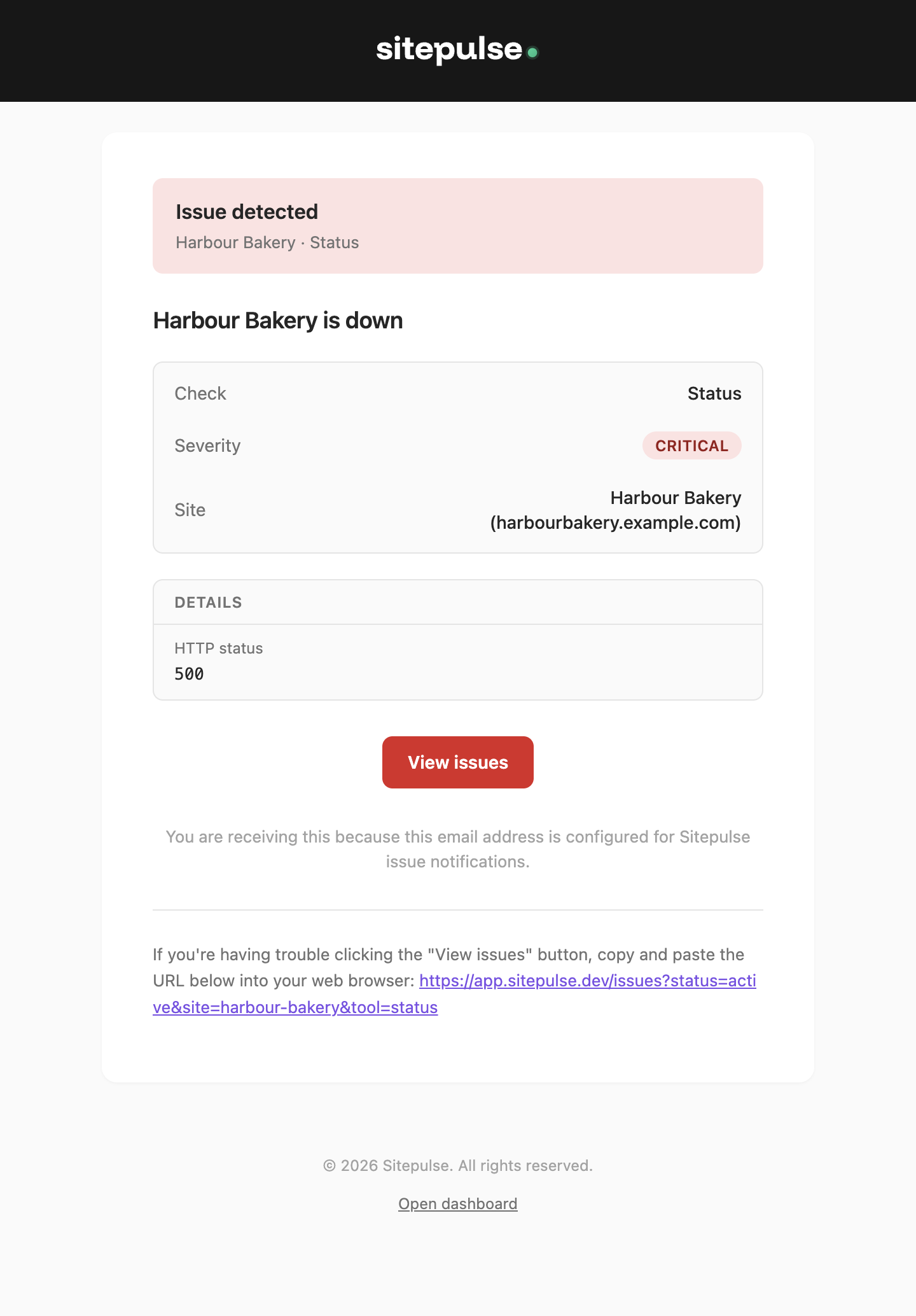
Owners and admins configure alerts from Notifications in the sidebar. Add a channel, choose its destination, and select the events and check types it should receive.
Channels
| Channel | Setup |
|---|---|
| Enter the recipient email addresses. | |
| Slack | Connect the Sitepulse Slack app and choose a channel. |
| Discord | Connect Discord and choose a channel. |
| Slack webhook | Enter a Slack incoming webhook URL. |
| Microsoft Teams | Enter a Teams workflow webhook URL. |
| Webhook | Enter your HTTP endpoint and choose GET or POST. |
You can add several channels, including several destinations of the same type. Each channel can be enabled, disabled, edited, or removed independently.
Events and check types
Select the events each channel receives:
| Event | When it is used |
|---|---|
| Issue detected | A new occurrence opens. Also receives alerts when an active issue worsens. |
| Issue resolved | A check confirms recovery. |
| Issue escalated | A configured follow-up reminder is due for an issue that still needs attention. |
| Issue worsened | The issue’s severity increases. |
Worsening alerts are also sent to channels subscribed to Issue detected. You do not need to enable both for the same destination to receive them.
Choose all check types or a selection of Status, SSL, DNS, Broken Links, and Performance. For example, send Status alerts to an on-call channel and performance alerts to a separate channel. These filters apply across the current team’s sites; they are not per-site routing rules.
Monitoring settings determine when a check opens an issue. Notification settings determine where its alerts go.
Issue escalation
Enable escalation in Monitoring and select reminder intervals. To receive these reminders at a destination, subscribe that channel to Issue escalated.
The intervals are measured from the occurrence opening, rather than a repeating reminder timer. Closing, ignoring, or recovering an issue stops its pending reminders. Escalation does not create another issue.
Webhooks
For a generic webhook, POST sends the alert as JSON; GET sends it as query parameters. Your endpoint should return a successful 2xx response. Use a publicly reachable HTTP(S) endpoint; private network addresses are not accepted.
Alerts include an event name, message, timestamp, and the affected team, issue, and site. Event names include issue.opened, issue.worsened, issue.escalated, and issue.recovered.
Use the site’s uuid and the issues API to retrieve more information. Do not assume every numeric id in a webhook can be used in an API route.
Test a destination
Use Test on a supported webhook channel to send a sample message. A test checks connectivity and formatting; it does not create a real issue. Email destinations do not have this webhook test.
Edit a saved webhook
The channel list masks secret webhook URLs. When an authorised owner or admin opens the editor, the saved destination can be loaded for editing. Leave the saved value unchanged to keep it, or replace it with a new URL.
Treat webhook URLs as credentials, since anyone holding one may be able to post to its destination. Email channels show their addresses; connected Slack and Discord channels show connection details instead of an editable webhook URL.
Quiet time
Quiet time prevents outbound issue alerts during a daily window. Checks and issue evaluation continue.
Email and webhook deliveries can wait until the window ends, provided the alert is still relevant. An issue that recovers or is closed or ignored can cancel pending alerts. In-app issue notifications are suppressed during the window.