Client reports summarise automatic monitoring for selected sites. Schedule delivery to recipients, or generate a private report to view and download yourself.
Requirements
Owners and admins can manage reports on Growth and Agency, including the Growth trial. Starter does not include reports. Access to generation, delivery, and saved reports requires eligible plan access.
Each report needs at least one site. Recipients are required when scheduled delivery is enabled; you can leave them empty for a report with delivery turned off. Recipients do not need an account or team seat.
Create a report
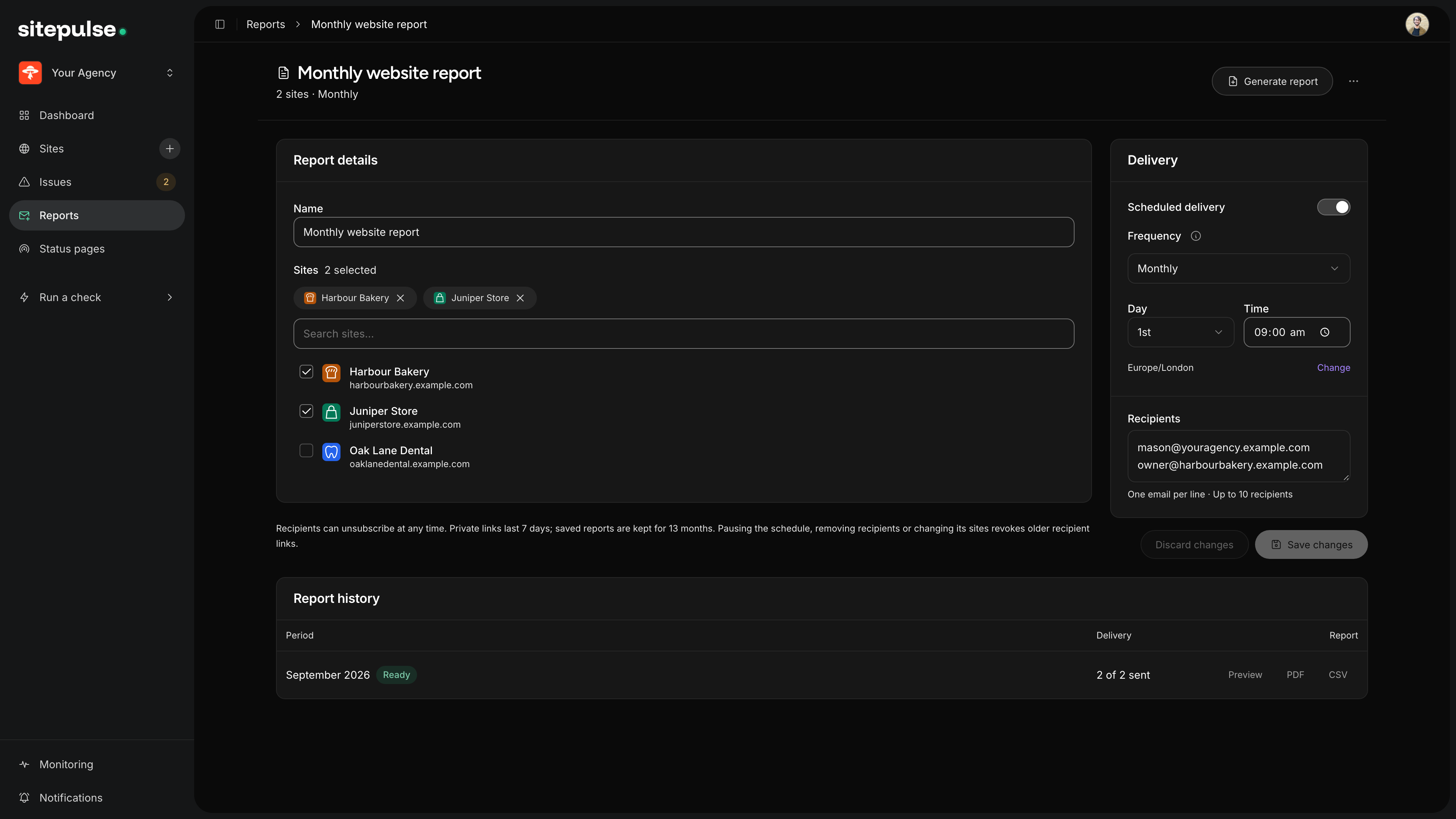
Open Reports in the sidebar and click Create report. You can also use Create report in a site’s Issue history to preselect that site.
- Enter a Name.
- Select up to 100 sites from the current team, within its plan allowance. Search the list or use Add by tag, then review the selected sites.
- Configure Delivery, or turn it off for manual reports only.
- Add up to 10 recipient email addresses when delivery is enabled. Separate them with newlines, commas, or semicolons.
- Click Save report.
Only add recipients you are authorised to share the selected sites’ results with. Saving does not require a separate authorisation checkbox.
Add by tag adds the sites currently carrying that tag. Later tag changes do not change the report’s saved site selection.
Scheduled delivery
Choose a Frequency, local delivery Time, and Timezone:
| Frequency | Delivery setting | Reporting period |
|---|---|---|
| Weekly | A weekday | The previous complete Monday–Sunday week. |
| Every other week | A first delivery date | The previous two complete Monday–Sunday weeks; delivery repeats every two weeks from the chosen date. |
| Monthly | A day from the 1st to the 28th | The previous calendar month. |
New reports default to monthly delivery on the 1st at 09:00 in your browser’s timezone. Use Change timezone to choose another timezone. Period boundaries use the report’s saved timezone.
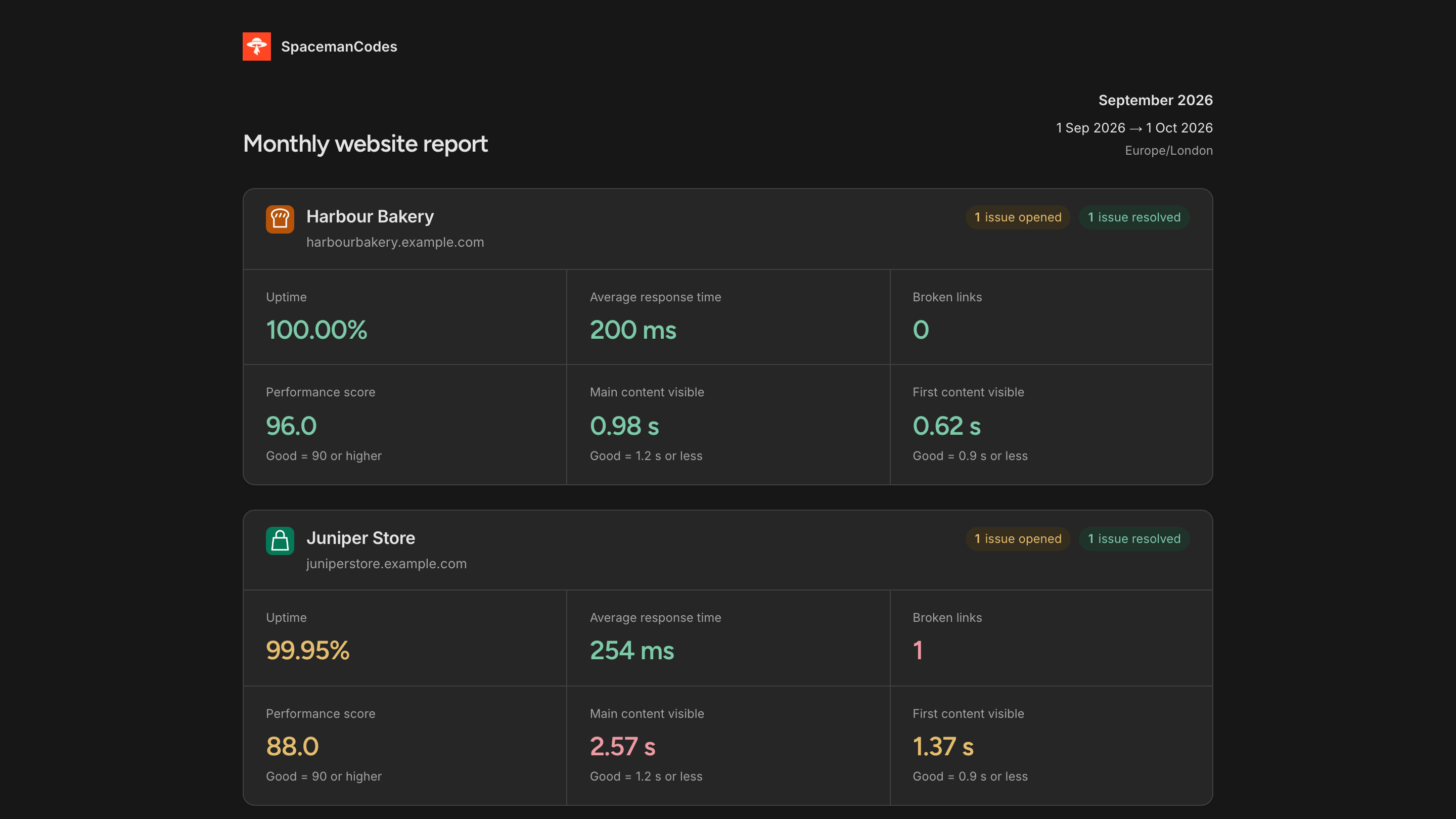
For example, a monthly delivery on November 2 in Europe/London covers October 1 up to November 1. Generation happens in the background; approved recipients receive separate branded emails with a PDF attachment and private report and CSV links.
The report list shows whether each schedule is enabled and when its next delivery is due. Each scheduled reporting period has one saved run; retrying does not resend deliveries already completed.
Generate a private report
Open a saved report and click Generate report. Select the date range, then confirm with Generate report. Both selected dates are included, in the report’s timezone.
Manual generation does not email recipients or change the next scheduled delivery. You can generate while scheduled delivery is turned off and without recipients. Save any changes to sites or branding first.
The end date cannot be in the future, and the start must be within your team’s retained check history. A manual run uses the observations currently available in that range; selecting today can produce a partial day’s results. Generating the same range again creates another manual run.
Report branding
On Reports, click Report branding. Set the Agency name, optionally upload a logo, then save.
- Logos must be PNG or JPG, up to 256 KB and 1600 × 1600 pixels.
- Branding applies to future reports across the current team. The team name is used until you set an agency name.
- The agency name is the sender display name; the sending address remains the Sitepulse address shown in the dialog.
- Existing reports retain their saved branding and results.
History and downloads
Report history contains scheduled and manual runs, with pagination for older entries.
| Status | Meaning |
|---|---|
| Pending or Generating | The report is being prepared. History refreshes as generation progresses. |
| Ready | Open View, PDF, or CSV. Scheduled runs also show recipient delivery counts. |
| Failed | Generation failed. Use Retry generation when eligible; manual runs can be retried with delivery off. |
| Cancelled | The run was stopped because its schedule or access was no longer valid. |
| Expired | The saved report has reached its retention deadline. |
Saved reports are kept for 13 months, separately from raw check-history retention. Availability still depends on eligible plan access and the report’s sites remaining in its scope and team.
What the metrics mean
Reports use completed and failed automatic monitoring checks within the selected period. On-demand checks, including issue recovery checks, are excluded from these metrics.
| Metric | Calculation |
|---|---|
| Recorded checks | Automatic Status, SSL, DNS, Broken Links, and Performance checks, with counts by tool. |
| Failed probes | Checks whose execution failed, separate from the number of issues opened. |
| Successful uptime checks | Successful automatic Status observations divided by all known Status observations. Failed probes count as unsuccessful. |
| Average response time | Average valid response time from automatic Status checks, in milliseconds. |
| Lighthouse performance | Average valid performance score from completed automatic Performance checks, out of 100. |
| Average LCP and FCP | Average valid Largest Contentful Paint and First Contentful Paint measurements, in milliseconds. |
| Issues opened and resolved | Recorded incident occurrences opening or recovering within the period. An occurrence can open before the period and recover during it. |
Uptime measures observed checks, not an elapsed-time SLA. Missing observations remain unknown; maintenance periods are not automatically excluded. Sites added during the period have partial coverage. A missing metric does not mean zero or full uptime.
Recipients and private links
Scheduled recipients receive separate emails and do not see each other’s addresses. Their report and CSV links last seven days and do not require sign-in. Anyone holding a valid link can use it.
Recipients can choose Unsubscribe from these reports and confirm to stop future emails from that schedule. This also revokes their links. Saving or re-adding the address does not undo an unsubscribe.
Removing a recipient and saving revokes that recipient’s older links. Changing the selected sites or pausing delivery revokes older recipient links for the schedule. A revoked link cannot recall an email attachment or downloaded file.
Pause or delete a schedule
Pause or resume from the report list’s actions, or turn Delivery off or on in the editor and save. Pausing stops scheduled emails and revokes recipient links. Eligible owners and admins can still generate private reports and read saved results.
Use Delete schedule in the report’s actions and confirm to delete the schedule, its saved reports, and private files. This also revokes recipient links.
API and MCP access
The client report endpoints read saved schedules, recipients, history, results, and PDF/CSV downloads. They require reports:read and eligible owner or admin access.
Use MCP connection setup to connect an AI app with the same permissions.
| Tool | Arguments |
|---|---|
sitepulse_list_monthly_reports |
team_uuid, optional page and per_page |
sitepulse_get_monthly_report |
report_profile_uuid |
sitepulse_list_monthly_report_runs |
report_profile_uuid, optional page and per_page |
sitepulse_get_monthly_report_run |
report_run_uuid |
sitepulse_download_monthly_report |
report_run_uuid, format (pdf or csv) |
These tool names also cover weekly, fortnightly, and manual reports. Pass the opaque uuid strings returned by Sitepulse. Downloads return an embedded PDF or CSV resource, with its MIME type and base64 bytes. They use your token and do not create a public link.
Use the app to generate reports, change schedules, and send scheduled emails. The API and these MCP tools are read-only.