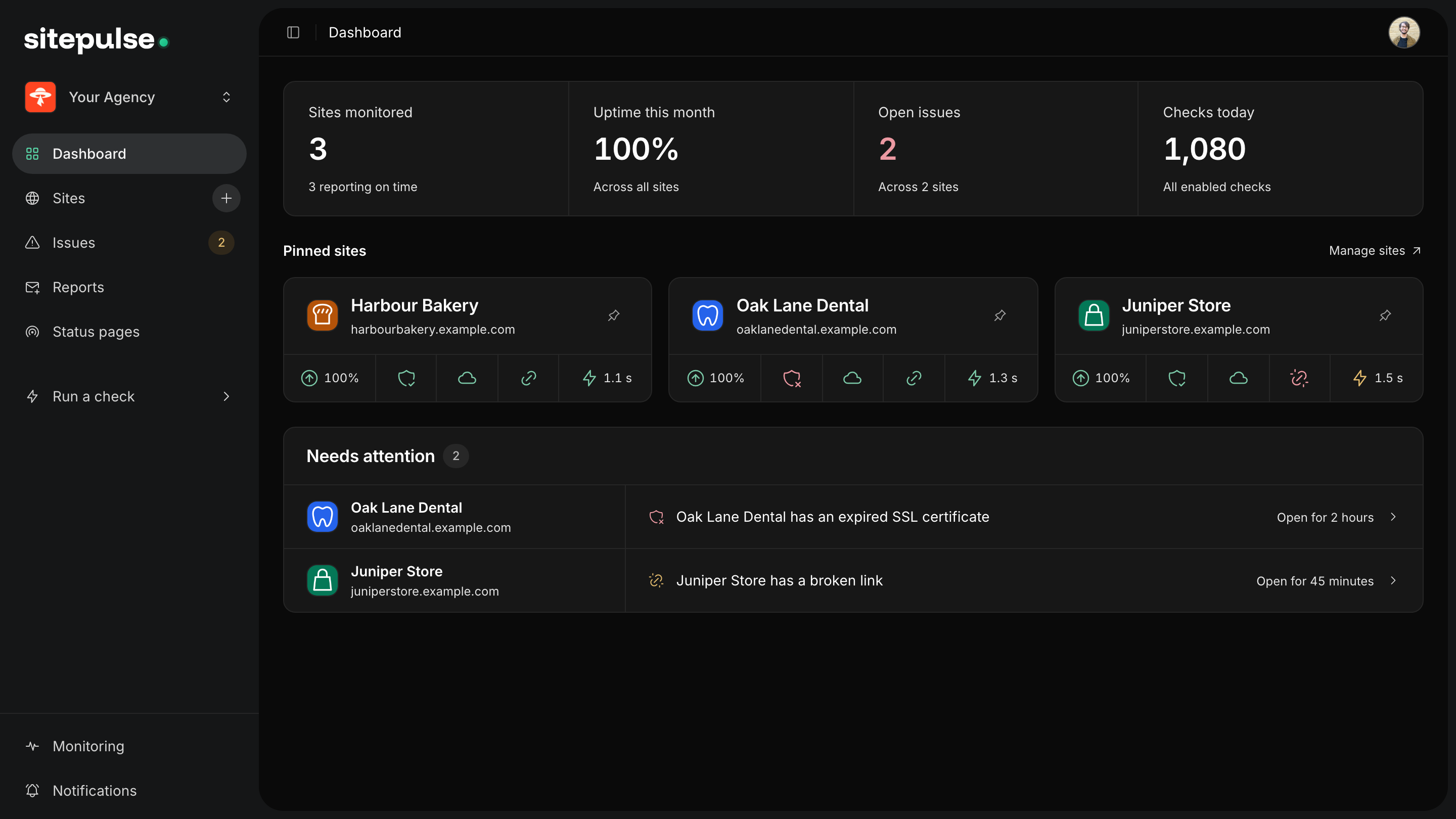
Add your first site, configure monitoring, and choose where issue alerts are sent.
Prerequisites
Before you begin, you need:
- A verified email address
- Access to a website you want to monitor
Get started
Create your account
Visit app.sitepulse.dev and sign up. You’ll need to verify your email before accessing the dashboard.
Create or join a team
After email verification, Sitepulse automatically creates your first team if you are eligible for a trial and have no pending invitation. If you have an invitation, accept it to join that team’s workspace. Otherwise, create a team from Teams.
Creating an eligible team automatically starts a 14-day Growth trial, with no payment card required. Joining an existing team uses that team’s access and does not start a trial. If you are not eligible and the team has no active access, its owner must subscribe before monitoring can begin.
Add your first site
Open Sites → Add site and enter:
- URL - The website you want to monitor (e.g.,
https://example.com) - Site Name - A friendly name
- Tags - Optional labels for organising sites
- Notes - Optional context about the site
- JavaScript rendering - Enable when broken-link checks need to render client-side content
Save the site. It inherits your team’s monitoring defaults, and the enabled checks start automatically unless monitoring is paused. Open a tool’s result on the site overview to inspect it, or use Run check for an on-demand result.
Configure monitoring and alerts
- Monitoring - check cadence, problem thresholds, escalation reminders, and quiet time
- Notifications - email, Slack, Microsoft Teams, Discord, and webhooks
Review issues
When automatic monitoring detects problems, issues record the incident. Open an issue to inspect evidence, close or ignore it, add team notes, or check for recovery.
For help, use Sitepulse support.
Next steps
-
Sites — Site settings and per-site overrides
-
Dashboard — Understand team health, pinned sites, and quick actions
-
Check tools — Learn about the five monitoring tools
-
Monitoring settings — Configure cadence, thresholds, and quiet time
-
Managing Issues — Investigate incidents, manage workflow, and verify recovery
-
API Integration — Automate with the Sitepulse API
-
Client reports — Schedule delivery or generate a private report
-
Status pages — Share availability and incident updates